Backup for photographers: keeping images safe from the shoot to the archive
Secure your photos in the camera, on the road, during editing and off site. With risks, backup tiers and a restore test.
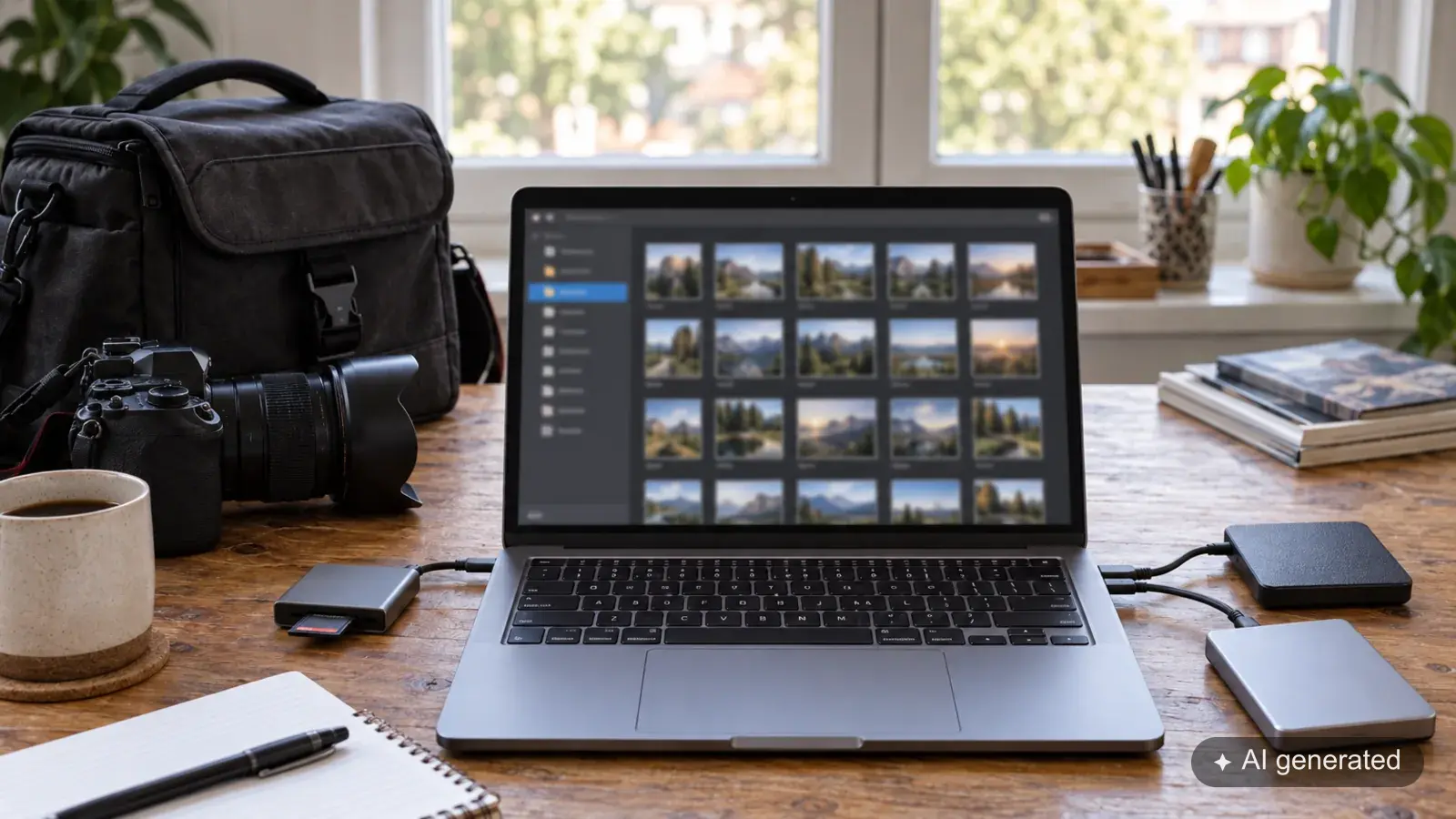
After this article you will be able to plan a complete chain of safekeeping for a photographic job: from the exposure in the camera through transport and editing to a backup held in a separate location. You will also know which risks a local copy covers, when it is not enough, and how to check that your data can really be restored.
A backup does not start at the computer. Images can be lost during the shoot itself, disappear later with a memory card, be damaged while copying, or go down together with the studio in a local incident. Every stage therefore needs an answer of its own. A single hard drive does not solve all of those jobs.
Where images can be lost
Hardware failure is only one scenario. For a plan that actually works, it helps to look at the possible failures stage by stage.
| Stage | Typical risk | Suitable countermeasure |
|---|---|---|
| Exposure | Memory card fails or is formatted by accident | Write to two cards at the same time where possible |
| Transport | Camera, cards or luggage are stolen or lost | Keep copies physically apart and carry one card on you |
| Import | Files are copied incompletely or deleted from the card too early | Verify the copy, release the card only after an independent backup |
| Editing | Drive fails, files are overwritten or deleted | Automatic local backup with several versions |
| Studio or home | Theft, fire, water or sabotage hits the working copy and the local backup | An additional copy in another place |
| IT attack | Malware encrypts every reachable drive and synchronised folder | A separate, versioned or temporarily offline backup |
Not every risk is equally likely. What matters is that no single event can hit all existing copies at once.
Make two copies in the camera itself
If your camera has two card slots, set the second card to a genuine parallel backup. Many models also offer modes such as overflow or storing RAW and JPEG separately. Overflow only extends capacity. A RAW file on card A and a JPEG on card B are not two equivalent copies of the same original either.
The names differ by manufacturer and model. In Nikon’s documentation on the role of the second slot, “backup” means that every image is written to both cards. Check this setting before an important job and, after a few test frames, confirm that the files really are on both cards.
Two cards protect against the failure of a single card. They do not help if the whole camera is stolen or damaged. After the shoot, separate the cards. One goes into a protective card wallet in an inside or chest pocket, the other can stay in the camera. Both cards in the same camera backpack remain one shared risk while you travel.
If the camera has only one slot, you cannot catch this risk during the shoot. Reliable cards, changing cards in good time and copying early after the shoot then matter more. Do not format a card that has behaved oddly, and stop writing to it if it shows read errors. Every further write operation can make later data recovery harder.
On the road, physical separation is what counts
Memory cards and backup drives do not belong in an unattended car, not even for a quick shop. A locked vehicle protects reliably against neither theft nor heat. Take at least one complete copy with you. If several people are working, the copies can be split between two of them.
After a shoot you copy the cards to the computer or to a suitable backup device, and additionally to a second drive. Check the file count, the total size and a few files from different parts of the shoot. A copying program with checksums can confirm that source and target match bit for bit. Opening a handful of previews does not fully replace that check, but it does reveal obvious problems.
The memory cards stay untouched until at least two verified copies exist. On a production running over several days it can make sense to change cards daily and not reuse them straight away. The extra cards cost money, but they shorten the window in which only working copies on travel hardware exist.
What belongs to a photographic job
The RAW files hold your exposures. Your editing program additionally stores how those exposures are meant to be developed. In Lightroom Classic much of that information sits in the catalogue. A catalogue backup on its own, however, does not contain the corresponding original photos. Adobe points this out for catalogue backups.
| Component | What you need it for |
|---|---|
| Original files | Developing again at full source quality |
| Catalogue and related editing data | Selection, organisation and the editing state so far |
| Retouching files with layers | Continuing extensive work on individual images |
| Delivered files | Tracing the version that was actually supplied |
| Job paperwork | Agreements, approvals and delivery details |
Which additional files your program needs depends on the software and the version. So do not put just one supposedly important file into the backup plan.
Local backup: fast, cheap and still limited
A local backup on a separate hard drive or a NAS is the practical first line of protection. Large amounts of data transfer quickly and can be pulled back in an emergency without a long download. The running costs are modest, and you keep control of the hardware.
The second copy does have to be genuinely independent. A second partition on the same SSD does not help when the drive fails. A RAID can carry on through the failure of a single disk, but it is no substitute for a backup. Deleted, overwritten or encrypted files can be passed on to every drive in the array.
A backup drive that stays connected all the time is convenient, but it also stays reachable for malware and mistakes. The US cybersecurity agency CISA recommends in its StopRansomware guide that important data be backed up in encrypted form, kept offline or otherwise separated, and restored in regular tests. One way to do that is to rotate two local backup drives and keep one of them disconnected during normal work.
Off-site backup: protection against local events
Fire, water, burglary or sabotage can hit the working computer and the hard drives in the same place together. The only answer is a further copy away from that location. That can be an encrypted drive in a suitable second place, or an online backup.
A drive kept elsewhere is often cheap and quick to fill with large amounts of data. In return you have to swap it regularly and organise the transport. An online backup runs more automatically and creates distance, but it depends on upload speed, plan, retention rules and the download time later on.
Work out the transfer realistically. 1 TB holds roughly 8,000 gigabits. At a steady 50 Mbit/s upload, the transfer alone takes around 44 hours on paper. In practice, fluctuations and protocol overhead come on top. A large initial set can therefore take several days. An upload that has started is not yet a finished copy.
With an online service, check:
- Are external drives backed up too, and what happens if they are not connected for a long time?
- Are earlier file versions and deleted files kept? For how long?
- How do you get several terabytes back if the worst happens?
- How is the data encrypted, and who holds the recovery key?
- Are the storage location, the contract and the data protection terms suitable for your jobs?
Synchronisation on its own is not automatically a backup. If you delete a file, the service may pass that deletion on to every connected device. Versioning and a clear route back are what make the difference.
Three copies with different jobs
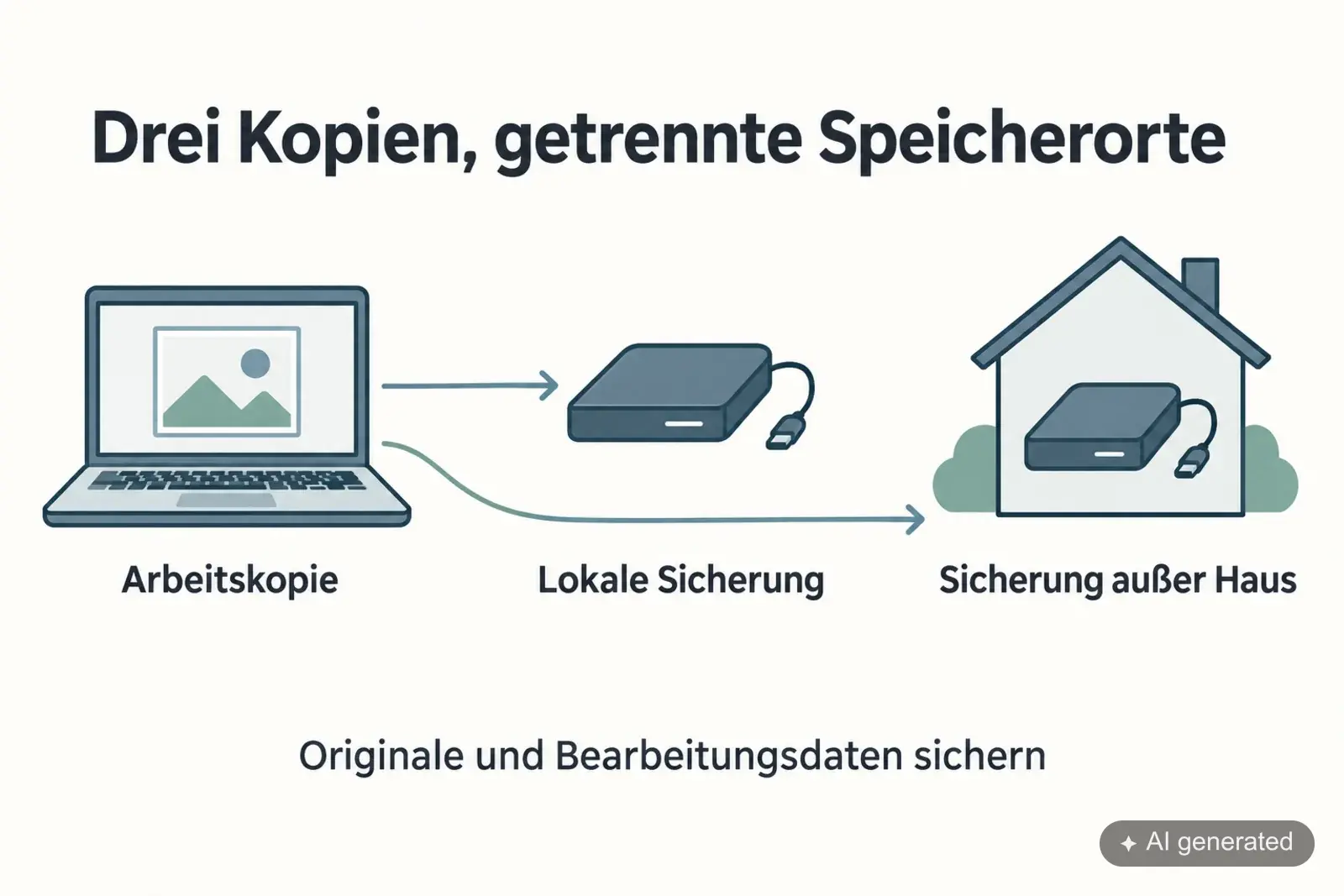
The 3-2-1 principle is a workable starting point: three copies of your data, on two different types of storage, one of them away from your own location.
Say you edit on your working SSD. A further hard drive automatically receives a local backup. An additional, versioned copy sits somewhere else. Two folders on the same SSD do not do that job. And after the import the memory card only counts as a copy temporarily, because it gets reused and does not hold your later editing state.
Turning a principle into a daily routine
A workable routine can look like this:
- The camera writes to two cards in parallel during the shoot, if it supports that.
- After the shoot the cards travel separately. At least one complete card stays on your person.
- The import produces a working copy and an independent local backup. The copy is verified.
- The cards are formatted only once two verified copies exist and the off-site backup has started or finished, depending on how much protection the job needs.
- During editing an automatic routine backs up originals, catalogue, retouching files and job paperwork in several states.
- After delivery the complete job moves into the archive and its backup.
If your volume does not allow a full external copy straight away, give priority to new jobs that have not been delivered yet. That is no substitute for the full plan, but it reduces the most pressing risk first.
Try the restore
Pick a job you have finished and restore it into a separate test folder. Leave the working files untouched.
- Pull back a few original images and the matching backed-up editing state.
- Open a separate copy of the backed-up catalogue or project.
- Check whether the program finds the restored originals. If necessary, point it at their new location in the test copy only.
- Compare the editing and export one image at the resolution you need.
- Note which backup you used, how long the restore took and whether anything was missing.
A visible preview on its own is not enough. What matters is that the original file is reachable and that you can carry on working with it.
Special cases that are easily overlooked
With tethered shoots the working file may land directly on the computer. Check whether the camera is writing to a card in parallel and whether the computer’s backup is actually running during the job.
A NAS in the studio makes central storage easier, but it stays in the same place. It needs an additional backup outside the studio. Snapshots on the same system are useful against accidental changes too, but they are no protection if the whole device is lost.
Encryption protects client data in a theft. At the same time it creates a new dependency: without the key there is no restore. Keep recovery keys separately, documented, and in a way that lets an authorised deputy reach them in an emergency.
If you suspect a fault, try not to carry on working on the affected original. Secure its current state and decide whether professional data recovery is needed. Repair attempts without a clear diagnosis can make the damage worse.
Make the backup a fixed part of finishing
Decide when you back up: after the import, after a day of editing and after delivery. How often depends on how much work you could bear to do again in an emergency.
Before you format a memory card, you check the independent backup. Before you remove a job from the working drive, you check the archive and its backup. A client gallery remains the place for delivery. Your originals and editing data are backed up on top of that.
For the next job, note the working location, the local backup target, the off-site backup location and the date of the last successful restore test. That turns “it should be backed up” into a routine you can check.
A short monthly check is often enough to spot creeping faults: is the backup job still running, are the most recent files included, is a drive reporting errors, and does a randomly chosen file still open? Several times a year the full restore test with originals and editing state follows.
Read on
- Moving photos to a new hard drive and finding them again in Lightroom
- Backing up the Lightroom catalogue: what is in the backup and what else you need
- Backing up photos on the road: a routine for multi-day shoots