Preventing screenshots from proofing galleries: what actually works
No web gallery can reliably block screenshots. How aftersnap makes image theft harder with protected previews, watermarks and releases.
A client is supposed to pick ten images. Shortly afterwards, the eleventh shot turns up as a screenshot in her story. Perhaps your watermark is still on it. Perhaps it was removed with an AI tool and replaced by a patch that looks good enough on a phone.
If that has happened to you, it is not because you missed some secret protection switch in your gallery. There is no such switch.
Screenshots cannot be reliably prevented in a web gallery. As soon as a device can display an image, that device can also capture the visible screen. What a gallery can do is make the route there so inconvenient that the normal selection process stays clearly the more attractive option.
Why a website cannot switch off screenshots
A gallery runs in the browser. It can control what happens within its own page: hide menus, stop an image from being dragged, or offer downloads only after a release.
The keyboard shortcut for a screenshot, however, belongs to the operating system. The same goes for screen capture on a smartphone. The website receives no reliable notice of it and cannot stop the process.
There is a web interface for screen capture. It is called the Screen Capture API and is used when a website itself starts sharing the screen, in a video call for instance. A permissions policy can block exactly that call. It does not switch off the device’s screenshot function. MDN describes this limit for display-capture.
And even if browser and operating system offered a perfect block, there would still be the camera of a second phone.
That sounds sobering. In practice it only means that the wrong question is often: “How do I prevent every case of image theft?” The better one is: “How do I stop someone getting to a usable file in two seconds?”
Blocking right-click is a hurdle, not a lock
Classic image protection blocks the context menu and dragging an image to the desktop. On a smartphone, the menu that appears when you press and hold an image can be suppressed too.
That stops the most convenient grab at the preview. For many situations that is already worthwhile. It prevents neither a screenshot nor access through the browser’s developer tools. Anyone technically minded can inspect image requests. Anyone who understands none of that can still press the screenshot keys.
That is why aftersnap calls this feature Basic protection. It should not be credited with more than that.
What the diagonal blur changes
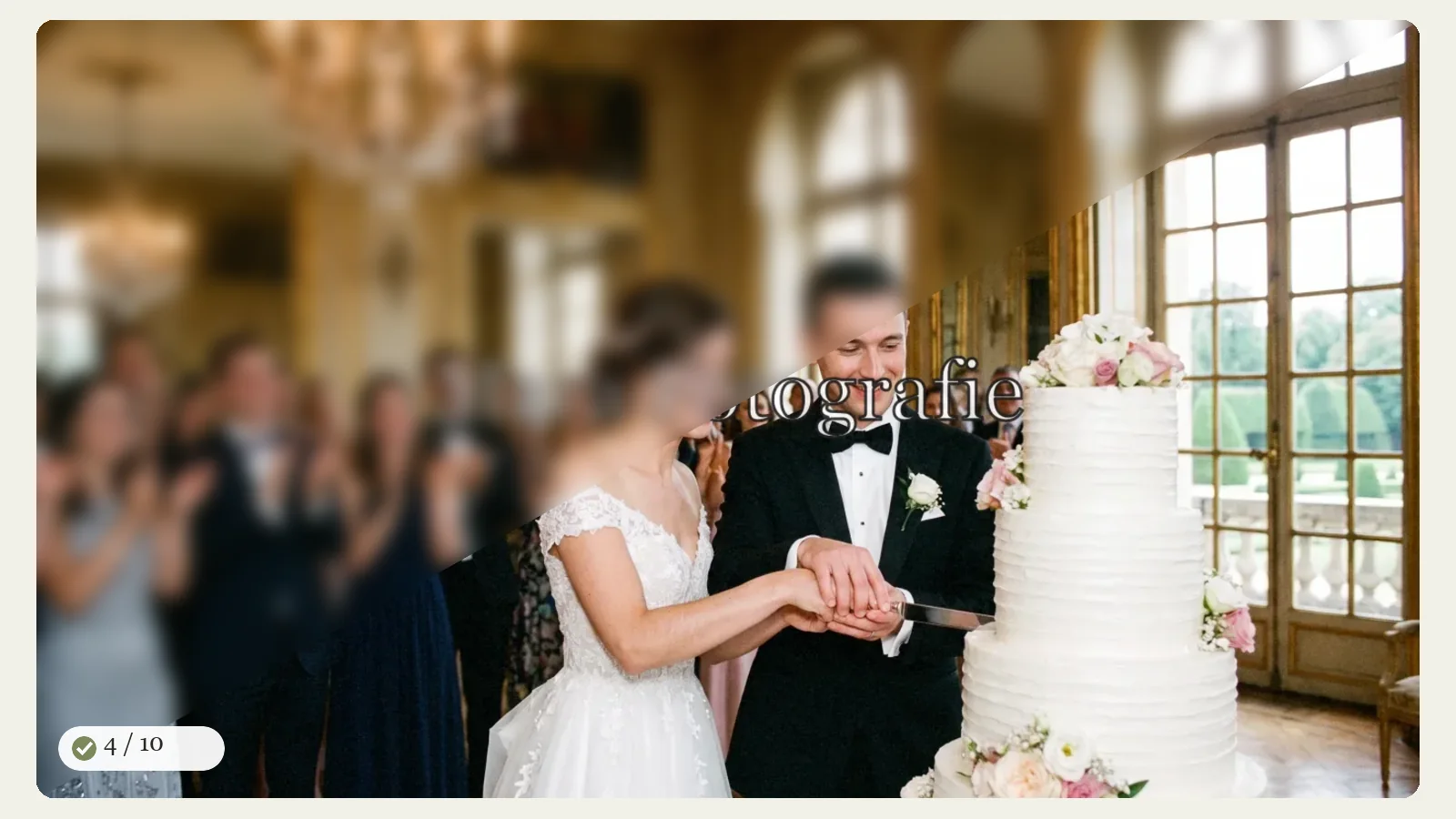
In an aftersnap proofing gallery you can also switch on Pro protection. One half of the image always stays sharp while the other is blurred along a diagonal. Move the mouse pointer to the other side and the sharp half switches. On a touch device the switch happens with a tap.
Your clients can still judge the photo. Expression, pose, framing and overall effect remain visible. A single screenshot, however, never contains the whole image in sharp form.
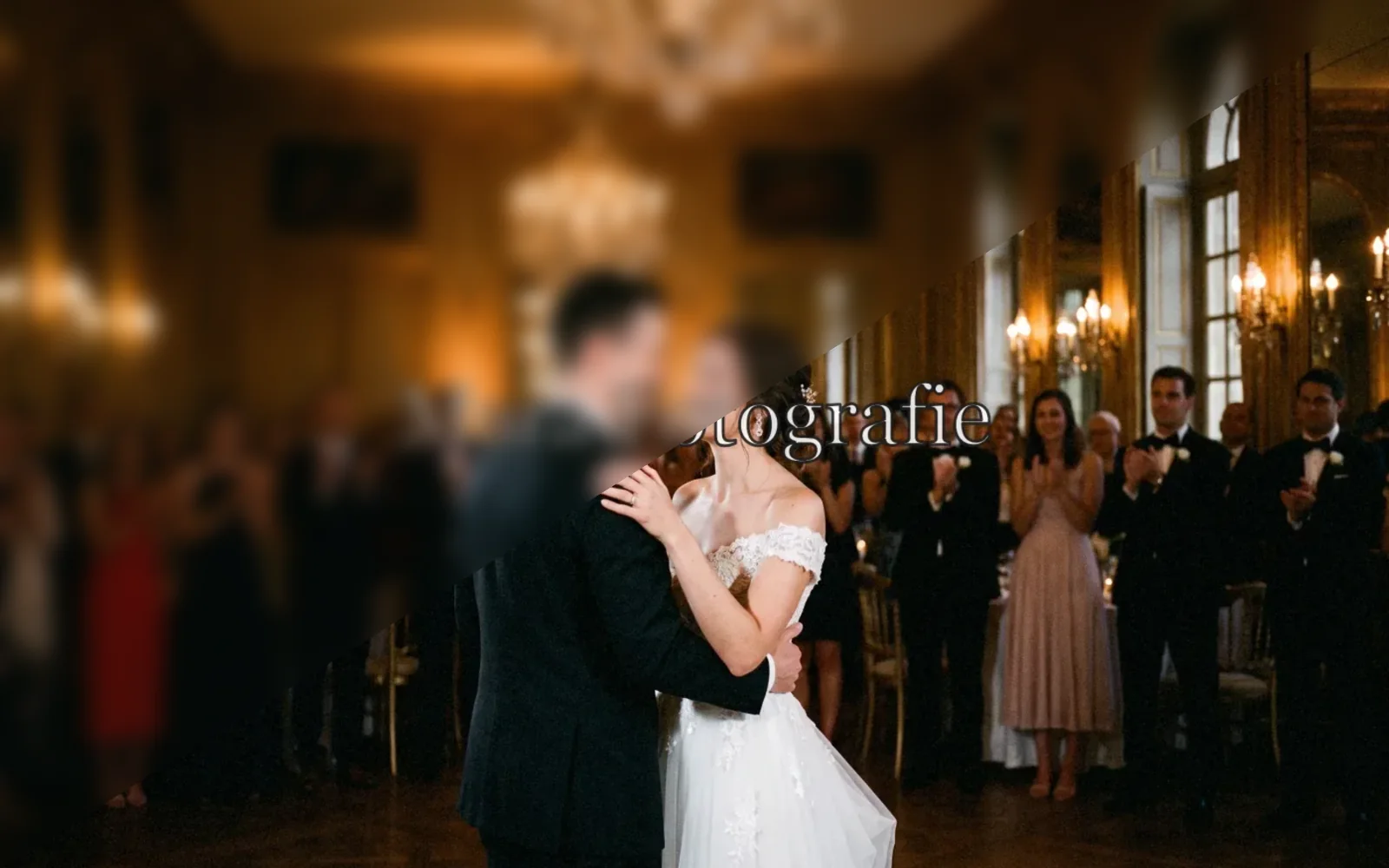
This is not an insurmountable protection either. A determined person could stitch several screen captures together or try to get at the underlying preview. The blur raises the effort. It replaces neither the watermark nor access protection.
A watermark has to be part of the preview file
A logo that merely sits over the image as a transparent layer looks right in the browser. Technically, though, it is easy to hide, because image and logo remain separate elements.
That is why aftersnap renders the watermark into the preview version on the server. The browser receives a new image file with the mark already in its pixels. Anyone who pulls the preview file out of the browser gets the same stamped version that is shown in the gallery.
You can use the watermark from your account or upload a separate one for the gallery. Position and size can be adjusted. A small logo in the bottom right corner gets in the way very little, but it is also easy to crop off. If protection matters more than an almost untouched preview, the mark should be large enough and sit over a relevant part of the image.
Can AI remove the watermark anyway?
Yes, it can try. Modern retouching and inpainting tools replace the covered area based on its surroundings. That does not mean they recover the original underneath the watermark. Those pixels were never sent to the browser at all. The tool invents a plausible version.
On a calm sky or an even wall, that can look convincing. With facial features, hair, hands, jewellery, fabric textures or fine edges it gets harder. The larger and more central the watermark, the more image content has to be replaced.
Current research shows that visible watermarks can be attacked with generative methods. It also shows that large watermarks and faithful reconstruction remain a demanding problem (Leng et al., 2025: study on inpainting and large visible watermarks).
So a watermark is not useless. It changes the sums: a clean screenshot becomes an image that has to be cropped, retouched or partly reinvented. For a small view on social media, someone may accept that effort. A reliable, faithful file does not automatically come out of it.
How aftersnap protects the selection before release
The measures take effect at different points. None of them has to do everything on its own.
A separate password for proofing
A proofing gallery has its own access. The previews are therefore not out in the open on the web. That does not protect against a person who has received the link and the password, but it limits the circle of those who can see the images at all.
Previews instead of original files
In the selection view, aftersnap serves generated preview images. The uploaded original file is meant for the photographer in the internal area and is not served to guests as a visible gallery image.
That does not prevent every reuse of a preview. It does prevent opening the gallery from giving away the clean original file straight away.
Three protection measures, set separately
You decide per proofing gallery:
- Basic protection against right-click, dragging and the save menu on mobile devices
- diagonal blur to make screenshots harder
- watermark from your account or a separate mark for this gallery
The watermark is rendered into the thumbnail and the larger preview. It is not a layer of the user interface.
Clean only after the binding finalisation
A selected image does not count as bought at the first click. Only once your clients finalise the selection bindingly can it be treated as released. That prevents the simple trick of selecting an image briefly, grabbing it clean and deselecting it again.
The same logic applies to additional photos: they stay protected until you release them.
You can specify whether released images appear without a watermark right away or stay stamped until after your editing. That way the protection fits the workflow of your shoot. How to set up a proofing gallery is explained step by step in the handbook chapter on proofing galleries.
Downloads follow your release
In a proofing gallery you decide whether the selected images may be downloaded right away or only after editing. If you later replace a preview with the finished edit, selection and notes stay on the same image.
Which setting suits which job?
Not every client and not every shoot needs the same hurdle. Protection that is too aggressive can make the selection needlessly tiring. Too little protection, on the other hand, invites convenient reuse.
| Situation | sensible setting |
|---|---|
| long-standing regular clients, small private selection | password and Basic protection, discreet watermark |
| family, wedding or business selection with additional photos | password, Basic protection and a clear watermark |
| high-priced single images or repeated problems with screenshots | password, Basic protection, diagonal blur and a larger watermark over relevant image content |
| selection before extensive retouching | leave the watermark visible after finalisation too, release the clean file only after editing |
The table is a working aid, not a security guarantee. Before sending, check the gallery yourself in a private browser window and on a smartphone. That way you see exactly the version your clients receive.
Protection works better when the way to buy stays easy
Technical hurdles work best when the intended route is clear. So show directly in the gallery:
- how many images the package includes
- what an additional image costs or how it is requested
- when the finished files will be delivered
- where questions and retouching requests should go
When clients can select images on the photo itself, write their requests right underneath and finalise the selection bindingly, there are fewer reasons for lists of file names or screenshots sent by messenger.
That is exactly what proofing is for. The protection holds something back. Above all, though, it leads to a clean workflow at the end of which the right images are released in the right version.
Frequently asked questions
Can aftersnap prevent screenshots completely?
No. A web gallery cannot reliably switch off the operating system’s screenshot function. aftersnap blocks convenient ways of saving and can make every direct screenshot incomplete with a diagonal blur.
Does aftersnap detect when someone takes a screenshot?
No. Normal websites receive no reliable notification of operating system screenshots. Such an indicator would feign a security that does not technically exist.
Is a blocked right-click any use at all?
Yes, as a first hurdle. It blocks the most convenient way of saving for ordinary users. Against screenshots or technically skilled access it is not enough on its own.
Can I show the watermark only on images that have not been bought?
Yes. You can specify that bindingly selected and released images appear without a watermark. Additional photos stay stamped until you release them. Alternatively, you keep selected images protected too until the editing is finished.
Does the gallery serve my original files to the browser?
The proofing view works with specially generated thumbnails and previews. Access to the uploaded original file is reserved for the photographer in the internal area. An authorised download follows the rules of the gallery.
Where should I place my watermark?
For stronger protection, it should not sit small in a corner that is easy to crop off. Choose a sufficient size and a position over relevant image content. Then open the guest link yourself and check portrait, landscape and the smartphone view.
You don’t have to choose between image impact and control
A proofing gallery should show images well enough for clients to make a confident selection. It does not have to hand over the finished, clean file to do that.
With Basic protection, the diagonal blur and a rendered-in watermark, you set how high the hurdle should be. After the binding finalisation you release exactly the images that belong to the job.
Try proofing with your own images for free
Technical status of this article: 4 September 2026. The protection features described refer to aftersnap proofing galleries. No measure can completely prevent the capture of a visible image.